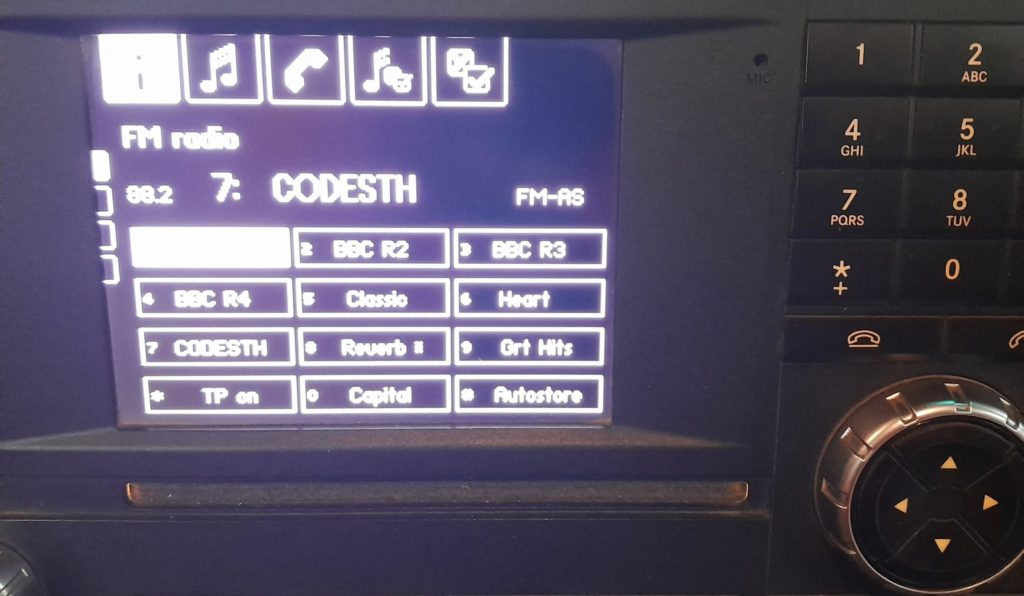
Stage 1: Putting the radio unit into Bluetooth Pairing mode
Using the the RIGHT ARROW (bottom right corner on photo)
Navigate to the far right icon (top of the screen – shown below)
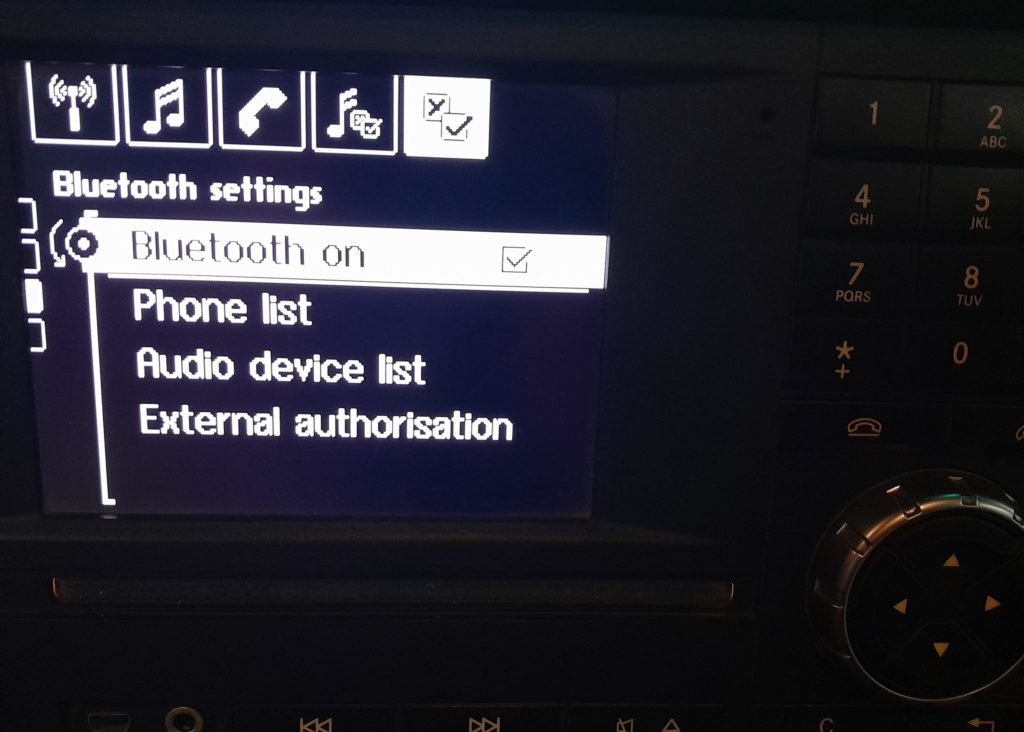
From here, use the SILVER DIAL (surrounding the arrow pad), and rotate it ANTI-CLOCKWISE to navigate down to ‘External authorisation’
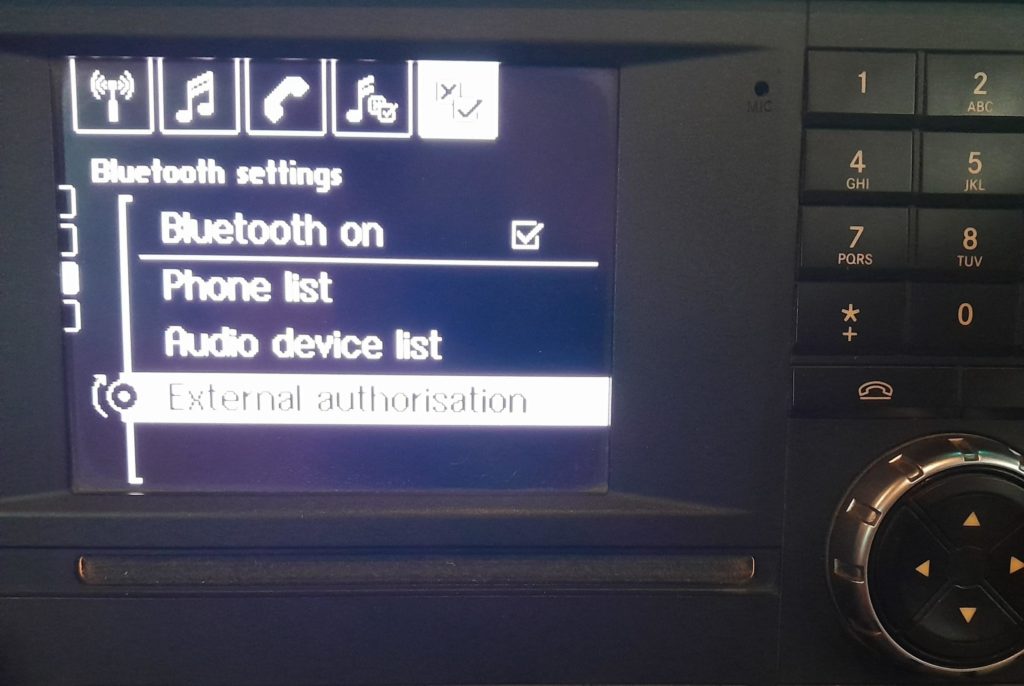
PRESS IN the silver dial to select ‘External authorisation’
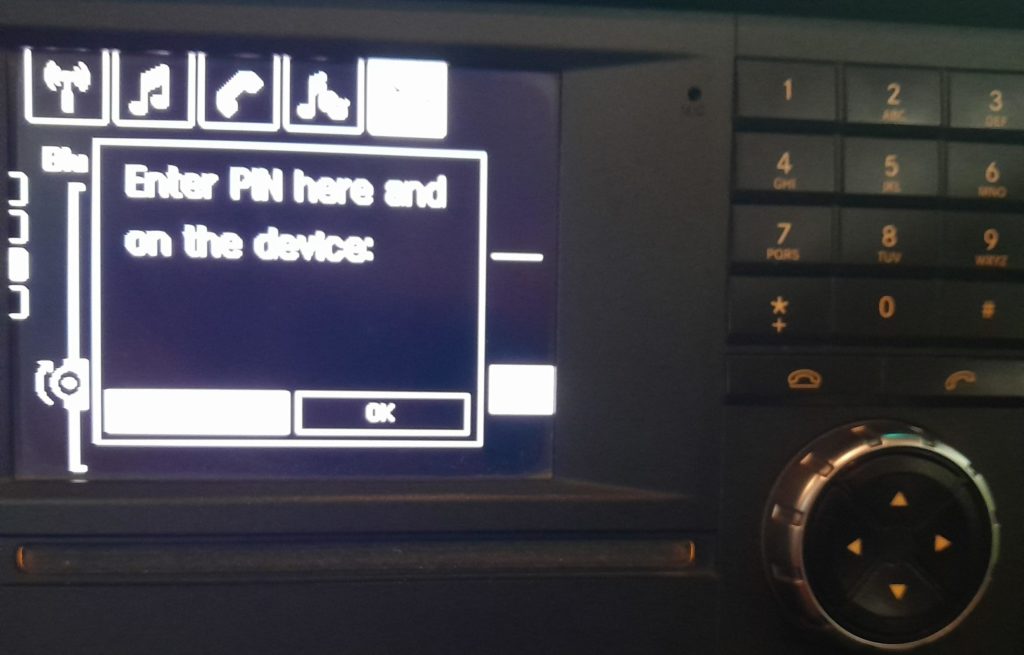
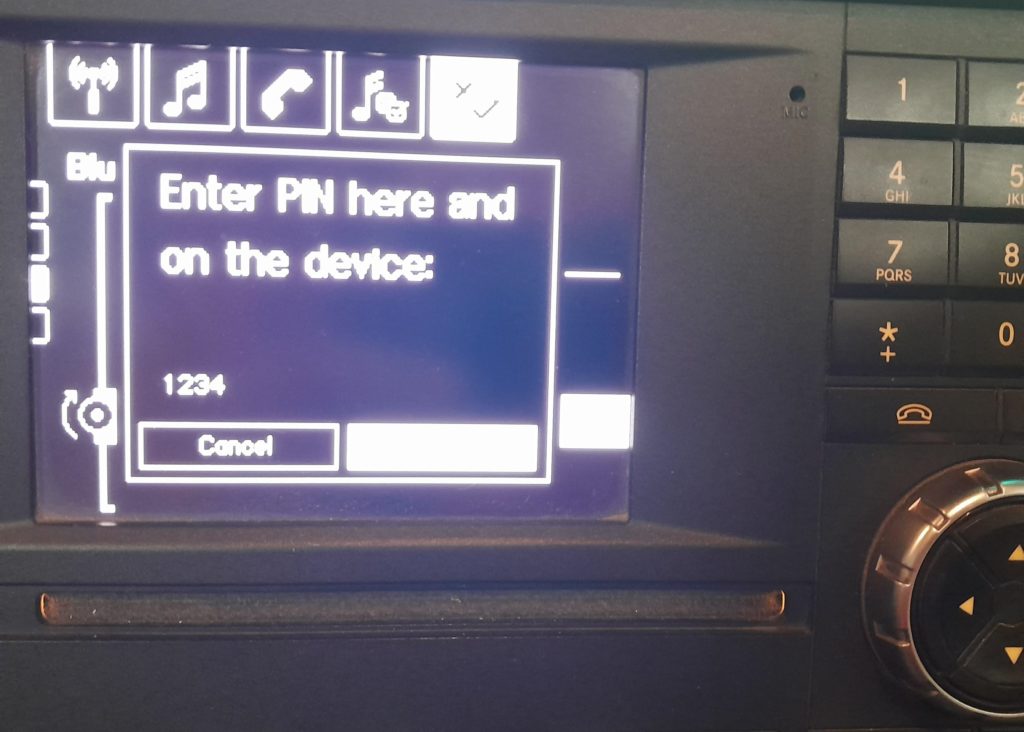
Once you have selected ‘External authorisation’, the screen above will appear prompting you to enter a pin.
Enter 1234 using the number pad and use the right arrow to select OK by pushing in the silver dial.
You will then see the following screen (shown below).
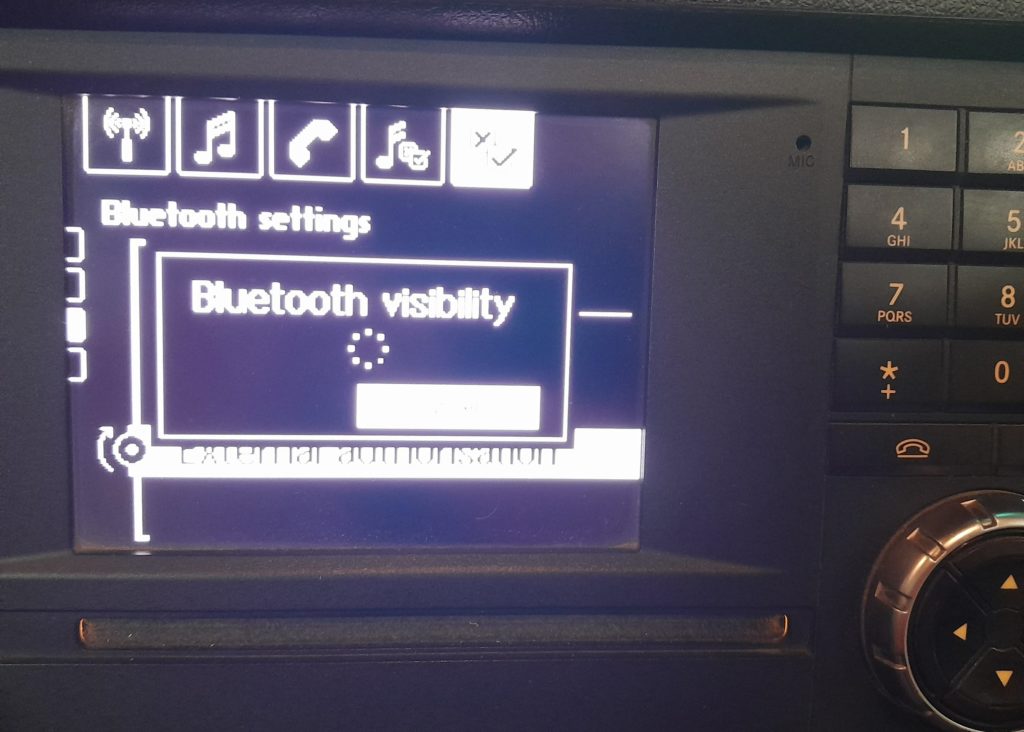
This means the Bluetooth in the radio unit will enter pairing mode and make itself visible to connections.
Stage 2: Connecting the phone to the Bluetooth
Once the radio unit is in pairing mode, it will allow your phone to find the Bluetooth connection.
- On your mobile, select menu and make your way to SETTINGS.
- Select CONNECTIVITY, and then BLUETOOTH.
- Ensure that the Bluetooth is ON, and select PAIRED.
- Select PAIR WITH NEW DEVICE, the phone will then search for open Bluetooth connections.
- Select MB Bluetooth on the devices found list – DO NOT select the option with the license reg of your vehicle.
- Once you have selected MB Bluetooth, you will then be prompted to enter the PIN you set up on the radio.
- Enter 1234 – a successful connection prompt will then appear on the mobile.
On the radio, you should then see the message below.
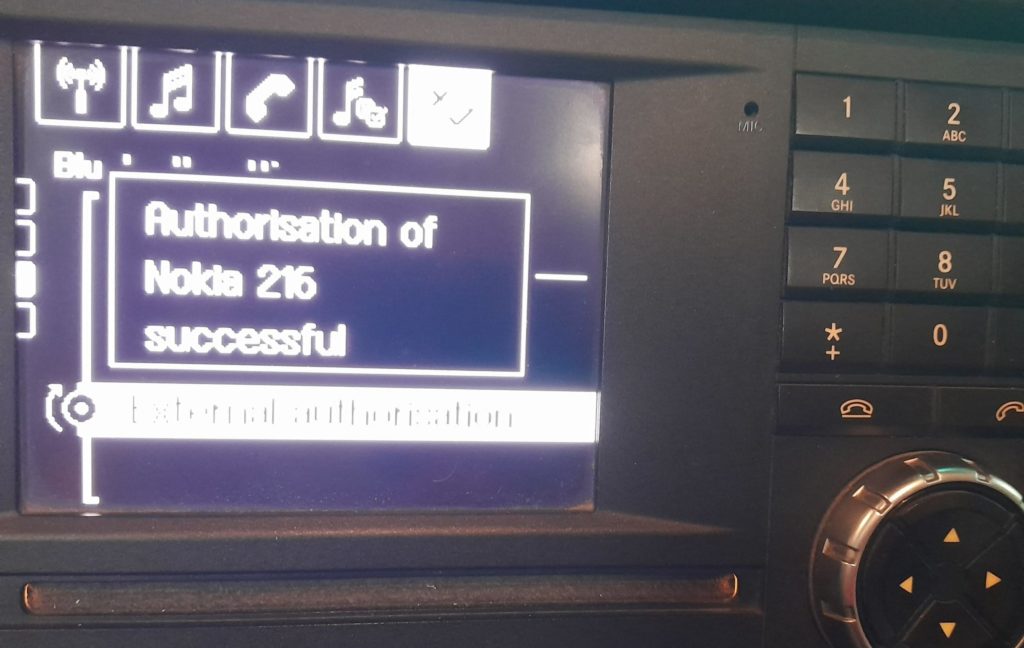
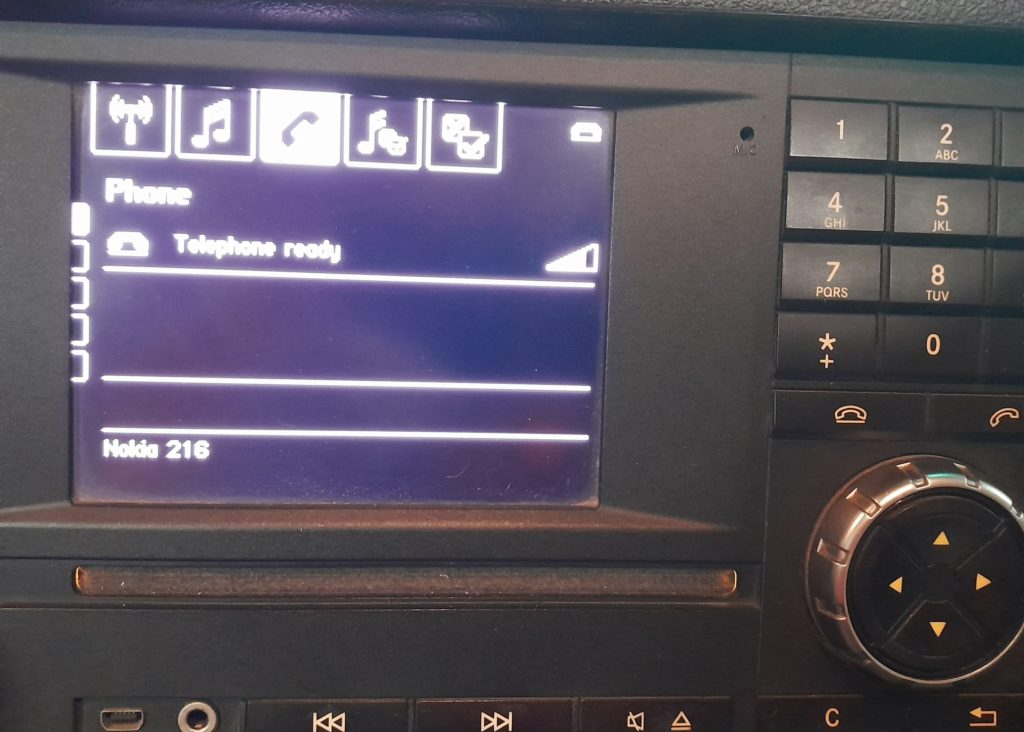
Using the LEFT ARROW, you can then scroll back across to the phone tab and this should show your phone connected.
To ensure your mobile AUTOMATICALLY connects, go to SETTINGS -> BLUETOOTH -> PAIRED and select OPTIONS on your paired device, then SETTINGS and turn AUTO-CONNECT to YES.
Troubleshooting
If you have trouble pairing your phone, try removing any phone pairings from the radio unit and then pairing your phone.